So, first download the apps. Put SyCatch app on the computer you wish to send video to, and SyKick on the computer you wish to send video from. Plug your firewire into both computers. On the computer you wish to send video to, open up system preferences and select Sharing, then select Internet Sharing in the list on the left.
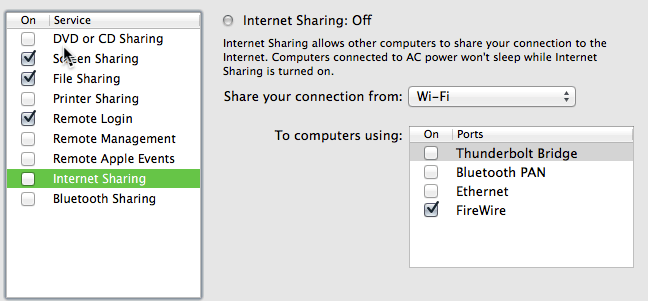
Check the FireWire box in the list on the right and check the Internet Sharing check box in the list on the left. On the computer you wish to send video from, Open up System Preferences and Select Network. If you don’t already have a FireWire network interface, add one, hit apply, and wait for the interface to obtain an ip address. You are networked.
On the computer you wish to send video from go open up SyKick. It will tell you there are no syphon servers available, if you have not created one yet. SyKick finds all available servers on your machine, but if there none, it will not let you go on.
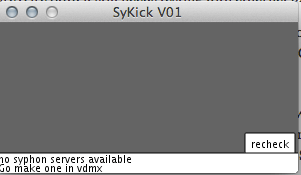
Go make a server and send it, I will be using VDMX for this example. To output syphon frames from VDMX, make a syphon output by creating an instance of the Syphon Output window from the Workspace Inspector > Plugins Tab. Then select Main Output, or which ever layer you want to send. Now go back to SyKick and click the recheck button. You should now see a list of available network interfaces and syphon servers. The FireWire interface is ‘fw0’, but for testing you can also try ‘lo0’ which is the loopback interface. Loop back means localhost, 127.0.0.1, same thing. Feel free to try any of these to help me test, I do not have two computers with Thunderbolt available. If you are still using FireWire select ‘fw0’ in the interfaces section, or what ever interface you wish to use, then select a syphon server from the syphon servers section.
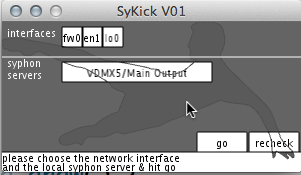
At any time you can press recheck to see if a network interface has opened up, or you have created a new syphon server.
Hit go to get to the kicker screen.
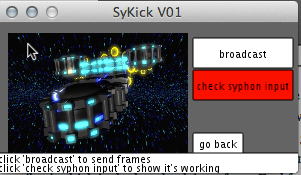
the button ‘check syphon input’ will display what the app is getting from syphon. This way you don’t have to keep the video running.
The ‘broadcast’ button will send your video to SyCatch. When pressed, the prompt at the bottom should say something about sending data. If it says “Video is too Boku”, you’ve made your video a bit too large. This will be fixed soon. If it says “Missed” you need to have SyCatch open on the other computer, make sure it is open. This doesn’t always happen if SyCatch is not open. Again, its in alpha, please let me know if you get the ‘Missed’ error, or any other errors.
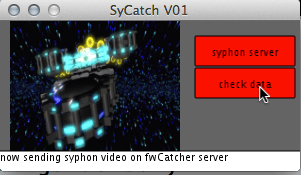
Back on the receiving computer, make sure SyCatch is open, the “check data” button will make sure you are receiving a signal from the other computer. The “syphon server” button will send video out over syphon as a server named “SyCatchV1-SyCatchData”. And there ya have it! Please let me know if you have any issues.
Leave a Reply